

The integration of computers into high-end audio is contentious. A reader poll last spring on our website indicated that a significant proportion of audiophiles—a quarter—is dead set against the idea, yet both Microsoft, with Windows Media Player 9, and Apple, with iTunes, seem convinced that the future of domestic music reproduction involves computers. To support that idea, both Apple- and Windows-based computers (the latter with Intel's about-to-be-launched HD Audio technology) are promoting hi-rez audio playback.
 As a significant amount of my overall music listening already takes place with a computer as source, I'm always on the lookout for products that aid this integration. Four years ago I reviewed two PCI soundcards, the CardDeluxe from Digital Audio Labs (September 2000) and the Digi96/9 PRO from RME (November 2000, with a Follow-Up in January 2001), while Wes Phillips reviewed the RME Digi96/8 PAD in March 2002. In the office, I use my desktop PC with Yamaha's USB-interface RP-U100 personal receiver (December 1999), while Michael Fremer spilled some ink on the tubed USB-interface Sutherland 12dAX7 DAC (December 2002). More recently, I've been using my PowerBook with a superbly versatile FireWire-interface audio box from Metric Halo, the MIO2882. But there are other high-end computer audio manufacturers that we have neglected, most notably Lynx and Echo, whose products have gotten much word-of-mouth praise on the Internet.
The Indigo IO
As a significant amount of my overall music listening already takes place with a computer as source, I'm always on the lookout for products that aid this integration. Four years ago I reviewed two PCI soundcards, the CardDeluxe from Digital Audio Labs (September 2000) and the Digi96/9 PRO from RME (November 2000, with a Follow-Up in January 2001), while Wes Phillips reviewed the RME Digi96/8 PAD in March 2002. In the office, I use my desktop PC with Yamaha's USB-interface RP-U100 personal receiver (December 1999), while Michael Fremer spilled some ink on the tubed USB-interface Sutherland 12dAX7 DAC (December 2002). More recently, I've been using my PowerBook with a superbly versatile FireWire-interface audio box from Metric Halo, the MIO2882. But there are other high-end computer audio manufacturers that we have neglected, most notably Lynx and Echo, whose products have gotten much word-of-mouth praise on the Internet.
The Indigo IO
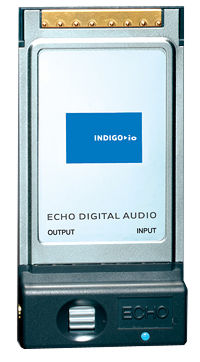
Echo makes three soundcards using the Type II CardBus interface: the basic Indigo ($159), which has a single set of 24-bit/96kHz-capable stereo outputs; the Indigo DJ ($229), with two sets of 24/96-capable stereo outputs; and the Indigo IO ($229), with one set of stereo outputs but also a two-channel analog input. The IO uses a 24-bit, 128x-oversampling A/D converter running at sample rates from 32kHz to 96kHz, and because of its applicability to, for example, the archiving of LPs, it's the one I requested for review. Both inputs and outputs are carried on 1/8" stereo jacks, one on each side of the small block that stands out from the laptop when the card is plugged in. A thumbwheel on top of this block controls volume, and the output stage is robust enough to drive a pair of headphones to high levels. As well as a CD-ROM containing the drivers and demonstration versions of such useful audio programs as Bias Deck and Bias Peak 4.0, and Virtual Instruments Reaktor, the card is supplied with a 6' adapter cable for both RCA and ¼" connections.
Compared with PCI soundcards intended for desktop use, the Indigo IO doesn't have digital ins and outs and doesn't support external clocking of its converters. It doesn't have MIDI I/O or microphone inputs, and doesn't support sample rates below 32kHz. But other than those lacks, it offers a high degree of functionality, including full-duplex operation—you can monitor your recording as you record it.
Installation
My primary test vehicle for the Indigo IO was my Titanium PowerBook running OS10.2.8, though I also installed it on a Sony VAIO laptop to see if there were any Windows-specific idiosyncrasies. (The card will run under Windows Me, 2000 and XP.) Both computers recognized the card when I plugged it in the appropriate CardBus slots, and installation for the software drivers was painless on both hosts. A small blue LED on its top lights up when the card is running. Echo is concerned that the card not be unplugged without it first being turned off with the CardBus icon on the toolbar (Mac OSX) or the Unplug Hardware toolbar command (Windows). "Failure to disable the card before removing it could potentially damage the card or the computer." Phew. We have been warned.
Of course, eventually I did inadvertently unplug the card without first powering it down. When I plugged it back in, the cursor froze on the screen and the PowerBook wouldn't recognize it. I trashed the driver, emptied the Trash so OSX wouldn't helpfully find it, restarted the computer, reinstalled the software, and plugged the card back in. Still no blue light. I then restarted the computer, and everything seemed okay—until I plugged in the headphones, at which point the blue light went out and the screen went dark. (The TiBook's screen blackout is usually a sign that a peripheral device is asking for a little too much power.) Applying the three-finger Control-Command-Power salute restarted the computer, and everything from then on was hunky-dory. From then on, I always used the Power Off CardBus Device command.
Among the supplied software is a basic mixing console program (v.1.3 with my sample of the card). This needs to be run the first time you use the Indigo, as the default maximum output is set at -40dB, even with the card's analog volume control all the way up. Moving the master faders to "0dB" allowed the music to issue forth. Each pair of output tracks has a meter, fader, mute, and pan controls (see screen shot); a similar set is provided to control the analog input. These faders operate in the digital domain, so they reduce signal resolution by one bit for every 6dB of gain reduction. For straightforward music playback, Echo recommends leaving the console faders at 0dB if at all possible, and using the analog volume control to set listening level.
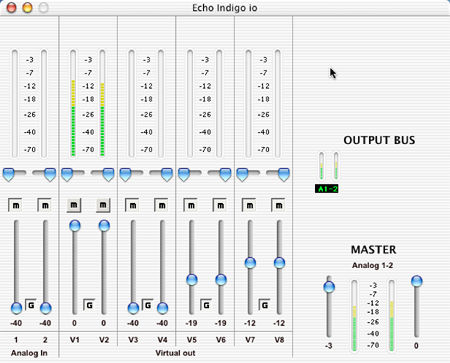 "Each pair of output tracks"? How can that be, when the Indigo has only one pair of outputs? Echo makes much of the fact that the card actually has four pairs of "virtual" outputs. To appropriate audio programs—Adobe Audition and Sony Vegas for the PC, for example, and Logic, Deck, Digital Performer, and Nuendo for the Mac—the Indigo will appear as if it has eight separate outputs. "These are mixed together with the on-board DSP," explains the manual, "to produce the actual or 'physical' outputs that connect to external equipment without any CPU intervention," thus reducing the demands made on the host computer. So if your music-production software supports multiple discrete outputs, you can select each of the Indigo's virtual outputs and use the console mixer to output a stereo feed. I don't have any suitable Mac software, so I couldn't take advantage of this feature. Nevertheless, this is still very neat.
As a significant amount of my overall music listening already takes place with a computer as source, I'm always on the lookout for products that aid this integration. Four years ago I reviewed two PCI soundcards, the CardDeluxe from Digital Audio Labs (September 2000) and the Digi96/9 PRO from RME (November 2000, with a Follow-Up in January 2001), while Wes Phillips reviewed the RME Digi96/8 PAD in March 2002. In the office, I use my desktop PC with Yamaha's USB-interface RP-U100 personal receiver (December 1999), while Michael Fremer spilled some ink on the tubed USB-interface Sutherland 12dAX7 DAC (December 2002). More recently, I've been using my PowerBook with a superbly versatile FireWire-interface audio box from Metric Halo, the MIO2882. But there are other high-end computer audio manufacturers that we have neglected, most notably Lynx and Echo, whose products have gotten much word-of-mouth praise on the Internet.
The Indigo IO
Echo makes three soundcards using the Type II CardBus interface: the basic Indigo ($159), which has a single set of 24-bit/96kHz-capable stereo outputs; the Indigo DJ ($229), with two sets of 24/96-capable stereo outputs; and the Indigo IO ($229), with one set of stereo outputs but also a two-channel analog input. The IO uses a 24-bit, 128x-oversampling A/D converter running at sample rates from 32kHz to 96kHz, and because of its applicability to, for example, the archiving of LPs, it's the one I requested for review. Both inputs and outputs are carried on 1/8" stereo jacks, one on each side of the small block that stands out from the laptop when the card is plugged in. A thumbwheel on top of this block controls volume, and the output stage is robust enough to drive a pair of headphones to high levels. As well as a CD-ROM containing the drivers and demonstration versions of such useful audio programs as Bias Deck and Bias Peak 4.0, and Virtual Instruments Reaktor, the card is supplied with a 6' adapter cable for both RCA and ¼" connections.
My primary test vehicle for the Indigo IO was my Titanium PowerBook running OS10.2.8, though I also installed it on a Sony VAIO laptop to see if there were any Windows-specific idiosyncrasies. (The card will run under Windows Me, 2000 and XP.) Both computers recognized the card when I plugged it in the appropriate CardBus slots, and installation for the software drivers was painless on both hosts. A small blue LED on its top lights up when the card is running. Echo is concerned that the card not be unplugged without it first being turned off with the CardBus icon on the toolbar (Mac OSX) or the Unplug Hardware toolbar command (Windows). "Failure to disable the card before removing it could potentially damage the card or the computer." Phew. We have been warned.
"Each pair of output tracks"? How can that be, when the Indigo has only one pair of outputs? Echo makes much of the fact that the card actually has four pairs of "virtual" outputs. To appropriate audio programs—Adobe Audition and Sony Vegas for the PC, for example, and Logic, Deck, Digital Performer, and Nuendo for the Mac—the Indigo will appear as if it has eight separate outputs. "These are mixed together with the on-board DSP," explains the manual, "to produce the actual or 'physical' outputs that connect to external equipment without any CPU intervention," thus reducing the demands made on the host computer. So if your music-production software supports multiple discrete outputs, you can select each of the Indigo's virtual outputs and use the console mixer to output a stereo feed. I don't have any suitable Mac software, so I couldn't take advantage of this feature. Nevertheless, this is still very neat.